

Keeping your NVIDIA graphics drivers up to date is one of those PC jobs that sounds more complicated than it actually is. Most of the time, you can download the latest driver through the NVIDIA App, install it, restart your PC, and get on with whatever you were trying to play in the first place.
It’s still worth knowing what you’re installing, though. NVIDIA offers both Game Ready and Studio drivers, older guides still point people toward GeForce Experience, and occasionally a new driver can cause more problems than it fixes. Thankfully, once you know where everything lives, updating or even rolling back an NVIDIA driver is pretty straightforward.
How to Update NVIDIA Drivers With the NVIDIA App
The easiest way to keep your NVIDIA graphics driver updated is through the NVIDIA App. If you’re following an older guide that tells you to open GeForce Experience instead, that information is increasingly out of date because NVIDIA has moved its current GeForce driver and graphics tools into the newer NVIDIA App.
Open the NVIDIA App and select the Drivers section. The app will check which driver is currently installed and show you when a newer version is available.
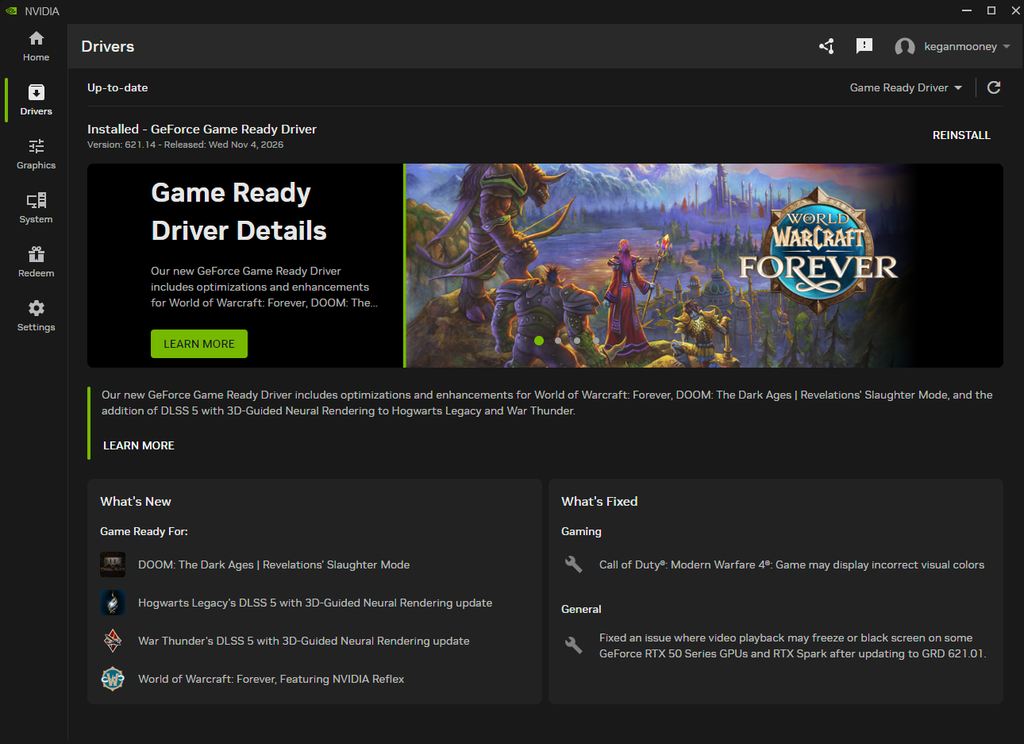
If there’s an update waiting, select Download and let the app fetch the driver. Once the download is complete, select Install and follow the instructions on screen. Your monitor might briefly flicker or go black while the graphics driver is being replaced, which is normal.
Once the installation has finished, I’d restart the PC even if Windows doesn’t insist on it. It only takes a minute and means you’re launching your game or app with the new driver properly loaded rather than anything left hanging around from before the update.
The NVIDIA App can also be set to automatically download new drivers when they become available. It won’t simply install them behind your back, though, so you’ll still have control over when the actual update takes place.
Game Ready vs Studio Drivers: Which Should You Install?
Before downloading anything, you might notice that NVIDIA offers two main driver types: Game Ready Drivers and Studio Drivers. For most people using their PC primarily for gaming, the Game Ready Driver is the obvious choice.
Game Ready Drivers are designed around gaming and regularly include support and optimizations for new releases, patches, and NVIDIA features such as DLSS. If your main reason for updating your driver is because a new game has landed or an older one has started acting up, this is usually the version you want.
Studio Drivers are aimed more toward people using creative software. NVIDIA puts more emphasis on stability and testing with applications used for video editing, animation, photography, graphic design, and similar workloads.
That doesn’t mean a Studio Driver suddenly makes games stop working, or that a Game Ready Driver prevents you from opening Photoshop. Both work for both types of use, but the difference is what NVIDIA prioritizes when testing and releasing them.
If you spend most of your time gaming, go with Game Ready. If your PC is primarily a workstation and stability in creative software matters more than getting day-one support for every major game release, Studio makes more sense.
How to Update NVIDIA Drivers Manually
You don’t have to install the NVIDIA App if you don’t want to. Drivers can still be downloaded directly from NVIDIA, which is also handy if you’re troubleshooting a PC that currently has an older or broken driver installed.
Head to NVIDIA’s official driver download page and enter your graphics card information. You’ll need to select the product type, GPU series, specific graphics card, operating system, and whether you want a Game Ready or Studio Driver.
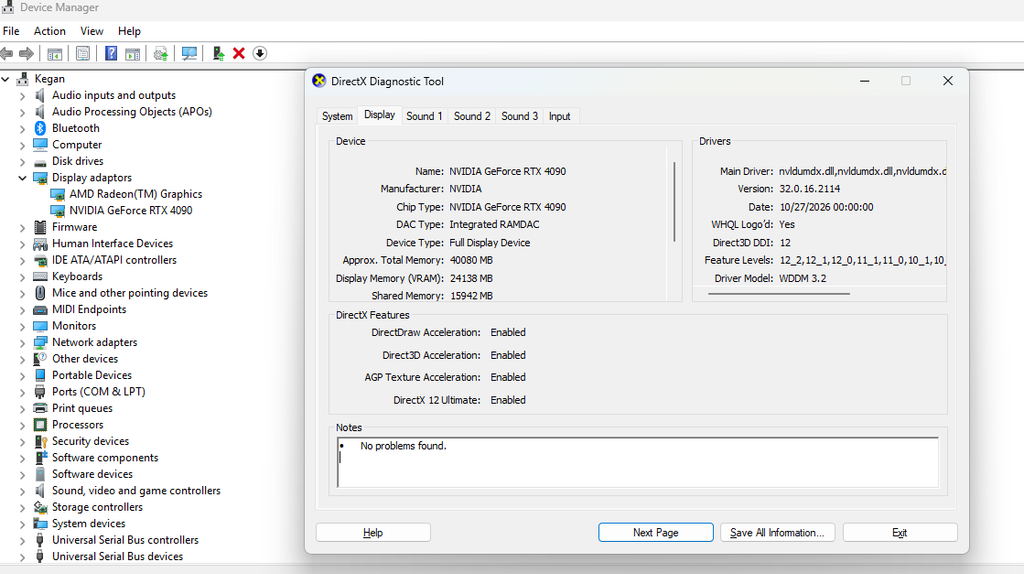
If you’re not sure which NVIDIA GPU you have, open Device Manager in Windows and expand Display adapters. Your graphics card should be listed there. Or pressing the Windows key and typing Dxdiag and hitting Enter will also show you your GPU model.
Once you’ve found the correct driver, download the installer and open it. Follow the setup process and install the graphics driver over your existing version.
NVIDIA doesn’t generally expect you to uninstall the older driver first. Installing the newer version over it is the normal approach and also lets you keep your existing NVIDIA settings and profiles.
What if the Latest NVIDIA Driver Causes Problems?
Newer doesn’t automatically mean better. Graphics driver updates regularly fix bugs and add support for new games, but occasionally they can introduce problems of their own.
If a game was working perfectly before you updated the driver and suddenly starts crashing afterward, the new driver should immediately be on your list of suspects. That doesn’t necessarily mean the driver is broken for everyone, but something about your particular setup might not be getting along with it.
Check NVIDIA’s driver release notes first to see whether the problem is already listed as a known issue. If necessary, you can download an older driver from NVIDIA’s driver archive and reinstall it.
In some cases, rolling back one driver version is much quicker than spending hours changing graphics settings, reinstalling games, and blaming Windows for something that started five minutes after a driver update. If the timing lines up perfectly, the driver is always worth checking first.
Frequently Asked Questions
Do I need to uninstall my old NVIDIA driver before updating?
Do I still need GeForce Experience?
Can an NVIDIA driver update cause games to crash?
Support Unboxed Reviews
Donations are entirely voluntary. Supporters receive no editorial influence — our reviews remain 100% independent.